
Earn up to $10,000 for every studio you refer
Issue 10 · Nov 6, 2026
Earn up to $10,000 for every studio you refer
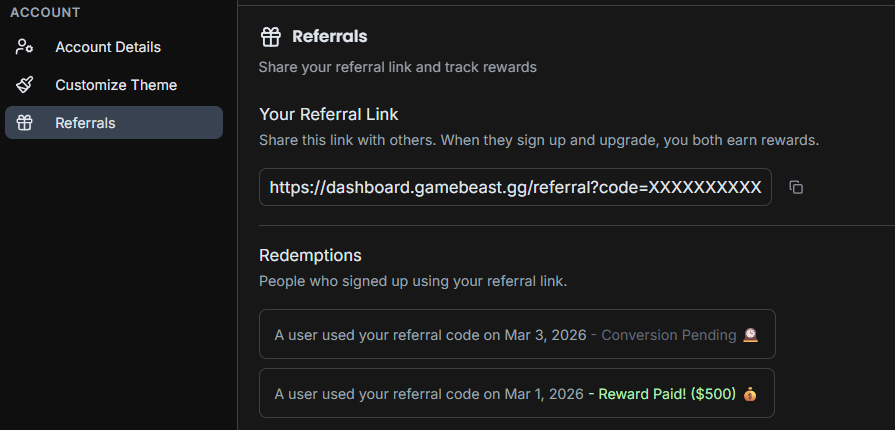
Every Gamebeast account has a referral link. Share it with another game studio or app team, and when they sign up or upgrade, you earn 5% of their first payment, up to $10,000 per studio.
- Find your link. It’s in Settings → Referrals, along with every team you’ve referred and where each one stands: conversion pending, payout pending, or paid.
- No limit. Refer as many studios as you like. Each referral stays open for 180 days.
- Enterprise studios too. They don’t need your link, just to name you when they start onboarding.
Instrumenting a new game takes just a few clicks
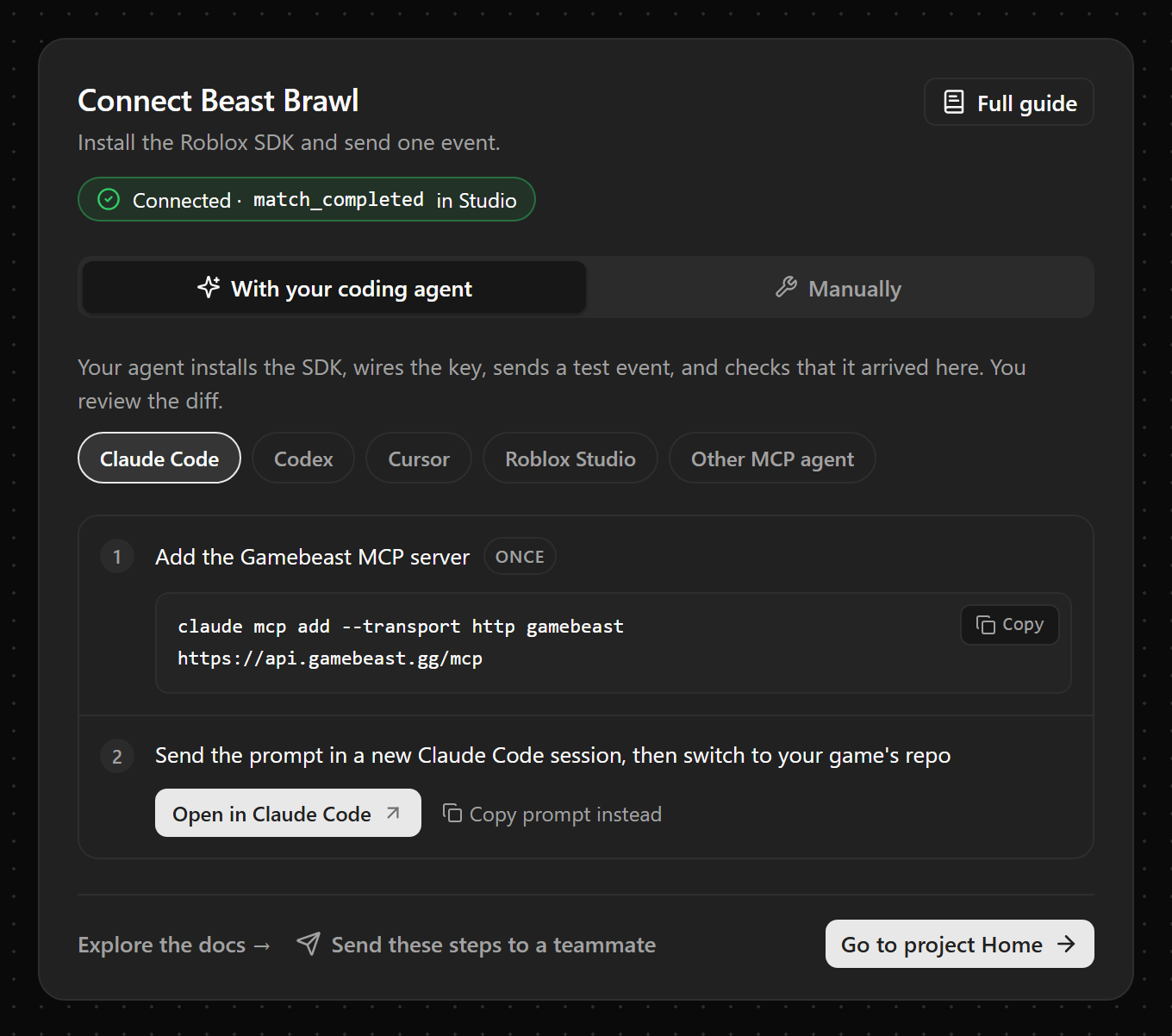
Adding a project now takes you to a single Connect SDK page with everything you need to get the first event in, and new studios go from sign-up to that page in one screen.
- Let your coding agent do it. Pick Claude Code, Codex, Cursor, or your engine’s agent, connect it to Gamebeast once, and send it the prompt. It installs the SDK, wires up the key, sends a test event, and checks that it arrived. You review the diff.
- Or do it by hand. The Manually tab has the steps for Roblox, Unity, Unreal, Godot, and JavaScript, with your SDK key already filled into the code.
- See it connect. The page watches for your first event and switches to Connected within seconds of it arriving, in Studio or Production.
- Hand it to a teammate. Send these steps to a teammate invites someone to just that project with an optional note, and their invite opens straight onto the setup page.
Read the getting started guide
User journeys: see the paths users take
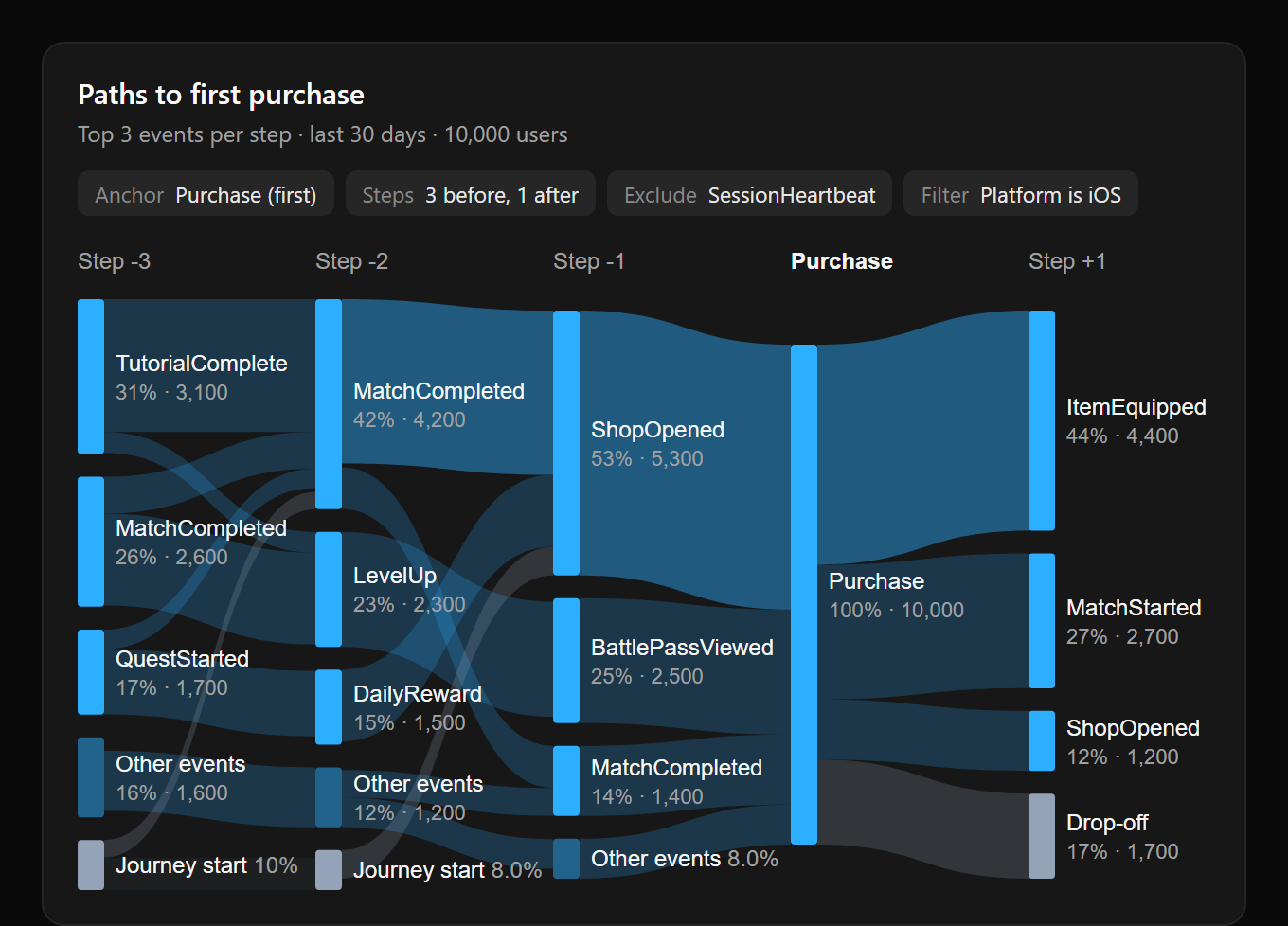
A funnel only answers the question you already asked. Journeys show you what you didn’t know to ask. Pick any event and Gamebeast maps the paths users actually take to reach it and what they do next, so the behavior that matters surfaces on its own: the routes you never designed, the detours, and the moments where users drop off.
- Before and after. What are the five most common paths to a user’s first purchase, and what did they buy? What are the three things users do most after finishing the tutorial?
- Between two goals. Set more than one anchor to see how users get from one to the other, like from starting a quest to completing it.
- Filters, breakdowns, and exclusions. Narrow a journey to the users you care about, break it down by any property, and leave noisy events out of the path.
Journeys have been a long time coming, and we’re happy to be delivering them from our roadmap.
Smaller things worth knowing
Find us in the MCP Registry. Gamebeast is listed in the official MCP Registry as gg.gamebeast/mcp, so MCP clients that browse it can find and connect to us directly.
How the numbers work, written down. New docs on experiment statistics, SDK reliability when users go offline, and data retention.
Check a chart’s range at a glance. The info popover on a query now shows its time range.
Also on the way
share links, histograms, and community pulse
- Share links. Turn any chart into a read-only link, with an optional PIN. Paste it into Discord, Slack, or anywhere on the web and it shows up as an embed of the chart, so you can quickly show off or share stats with anyone.
- Histograms. A chart for how a value is spread across users, not just its average.
- Community Pulse for everyone. User feedback from the channels you already run, grouped by topic and sentiment, for every studio.